
The short answer
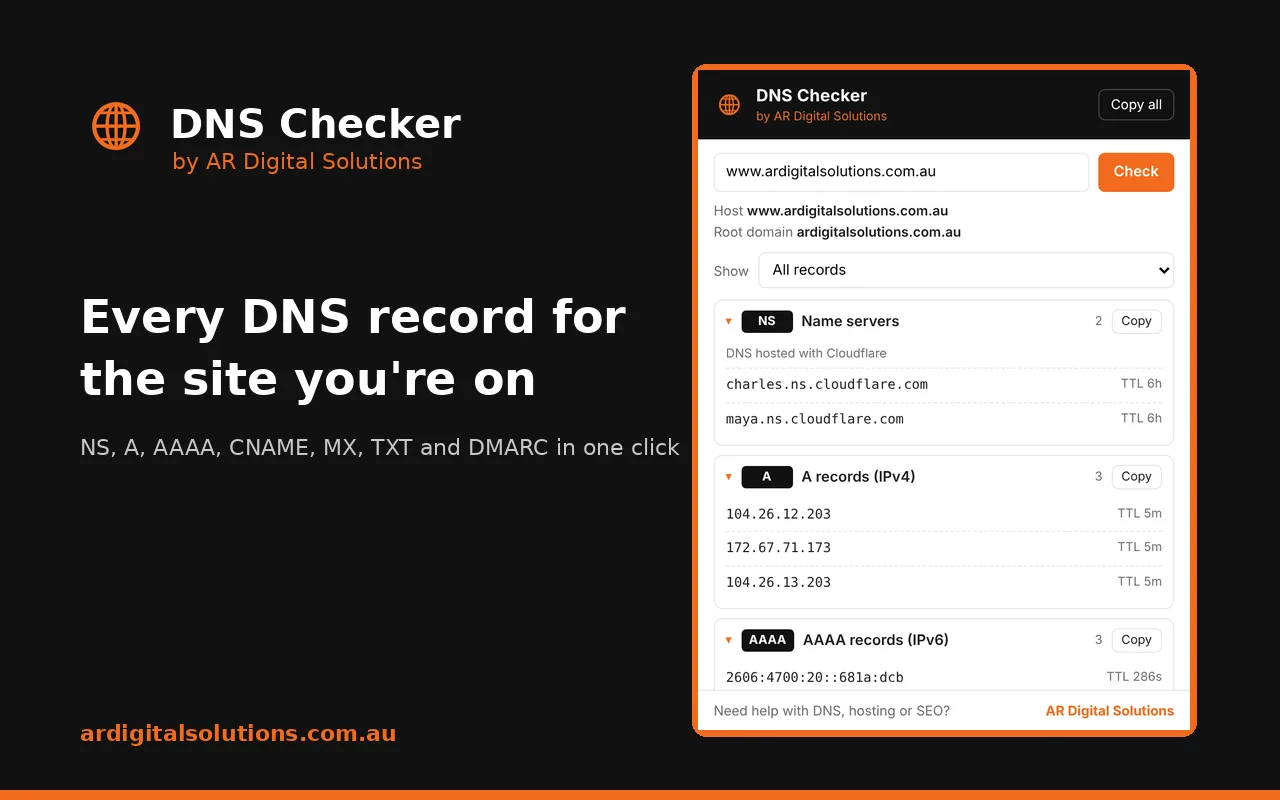
DNS Checker is a free Chrome extension from AR Digital Solutions. Open any website, click the orange globe in your toolbar, and it shows that domain's name servers, A and AAAA records, CNAME, MX records, TXT records, DMARC policy and SOA record in one popup. It also tells you who hosts the DNS and who handles the email.
Why we built it
We look up DNS records many times a day. A client's email has stopped, or a new site needs to go live and Search Console wants a verification record. Every time, it meant copying the domain into a lookup website, picking a record type, running it, then doing it again for the next type.
So our team built a tool that does the lot in one click, on the site you already have open. We used it on our own client work first. Once it had saved us enough time, we published it on the Chrome Web Store so other developers and business owners could use it too.
What it shows
- Name servers (NS). Where the domain's DNS is managed. The extension names the provider, such as Cloudflare, GoDaddy, Crazy Domains, VentraIP or Amazon Route 53.
- A and AAAA records. The IPv4 and IPv6 addresses the site points to, checked on the exact host you're viewing.
- CNAME. Whether the host is an alias for another name, which is common with Shopify, Squarespace and CDNs.
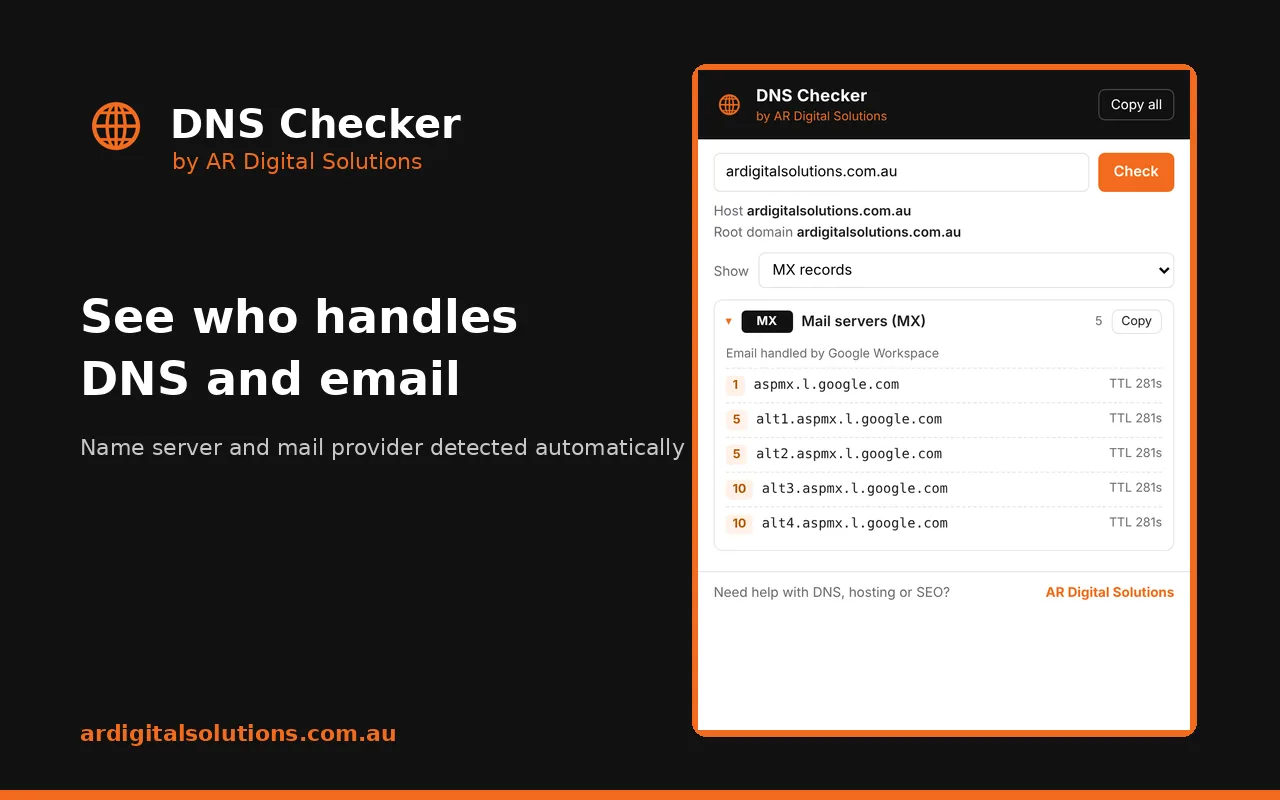
- MX records. The mail servers, sorted by priority, with the email provider named (Google Workspace, Microsoft 365, Zoho and others).
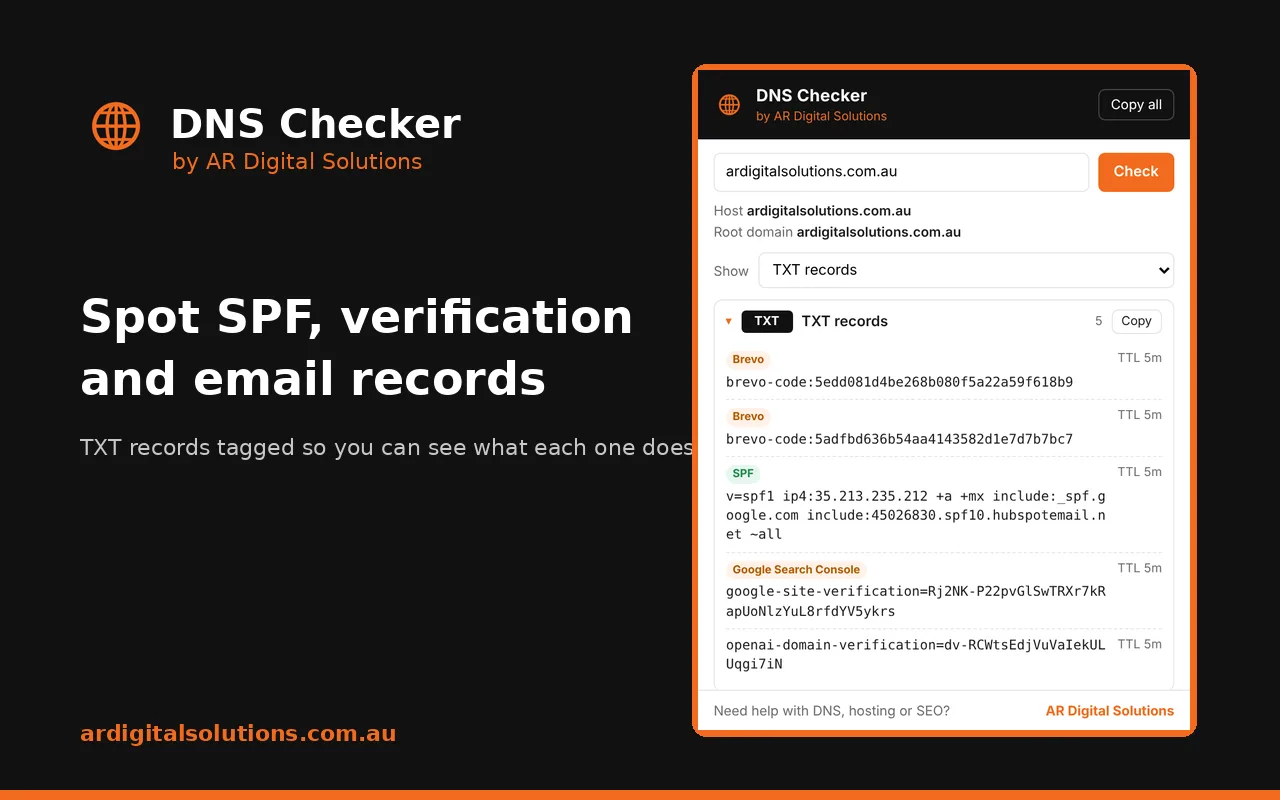
- TXT records. Each one labelled, so you can spot SPF, DKIM and verification records for Google Search Console, Meta, Microsoft 365 and Brevo at a glance.
- DMARC. The policy (none, quarantine or reject) and a warning if the domain has no DMARC record at all.
- SOA. The zone's primary name server and serial number.
Every record shows its TTL, so you know how long a change will take to flow through. A dropdown lets you show one record type at a time, and the copy buttons put a record type, or the whole set, on your clipboard for a support ticket or an email to your developer.
How to use it
- Install DNS Checker from the Chrome Web Store.
- Click the puzzle-piece icon next to Chrome's address bar and pin DNS Checker, so the orange globe stays in your toolbar.
- Open the website you want to check and click the globe. The records load in a second or two.
- To check a site you don't have open, type its domain into the box at the top of the popup and click Check.
You don't need to strip off www or a subdomain. The extension works out the root domain itself, so shop.example.com.au still shows the right name servers and mail records.
When it's useful
Before and after moving hosting
Check the A records and name servers before you start, so you have a record of the old setup. After the move, check again to confirm the domain points at the new server. The TTL tells you how long visitors might still reach the old one.
When email stops arriving
The MX section shows straight away whether mail is going to Google Workspace, Microsoft 365 or somewhere you didn't expect. If you've just changed hosting and email has gone quiet, a missing or wrong MX record is the first thing to rule out. Our guide on website forms not sending emails covers the next steps.
Checking SPF and DMARC
Google, Yahoo and Microsoft now expect bulk senders to have SPF, DKIM and DMARC in place, and smaller senders benefit too. The extension flags two common mistakes: a domain with more than one SPF record, and a domain with no DMARC record. Both make it easier for your mail to land in spam, or for someone to send email pretending to be you.
Verifying Search Console and other services
After adding a verification TXT record, click the globe to confirm it's live before you press Verify in Google Search Console, Meta Business Manager or Microsoft 365. It saves a failed attempt and a wait.
Auditing a client or competitor site
For agencies and consultants, one click shows who hosts a prospect's DNS and whether their email authentication is set up properly. It's a quick, honest starting point for a conversation about their website.
Privacy
The extension only runs when you click it. It sends the domain name to Google Public DNS, or Cloudflare DNS if Google can't be reached, and nothing else: not the full page address, not the page content and not your browsing history. We receive no data from it, and there's no tracking or advertising inside. Read the full DNS Checker privacy policy.
Need help with your DNS?
If the extension turns up something you'd rather not fix yourself, such as duplicate SPF records or a missing DMARC policy, our Brisbane team can sort it out. We look after domain registration, web hosting and business email for hundreds of Australian businesses. Book a free call or ring 07 3067 8910.